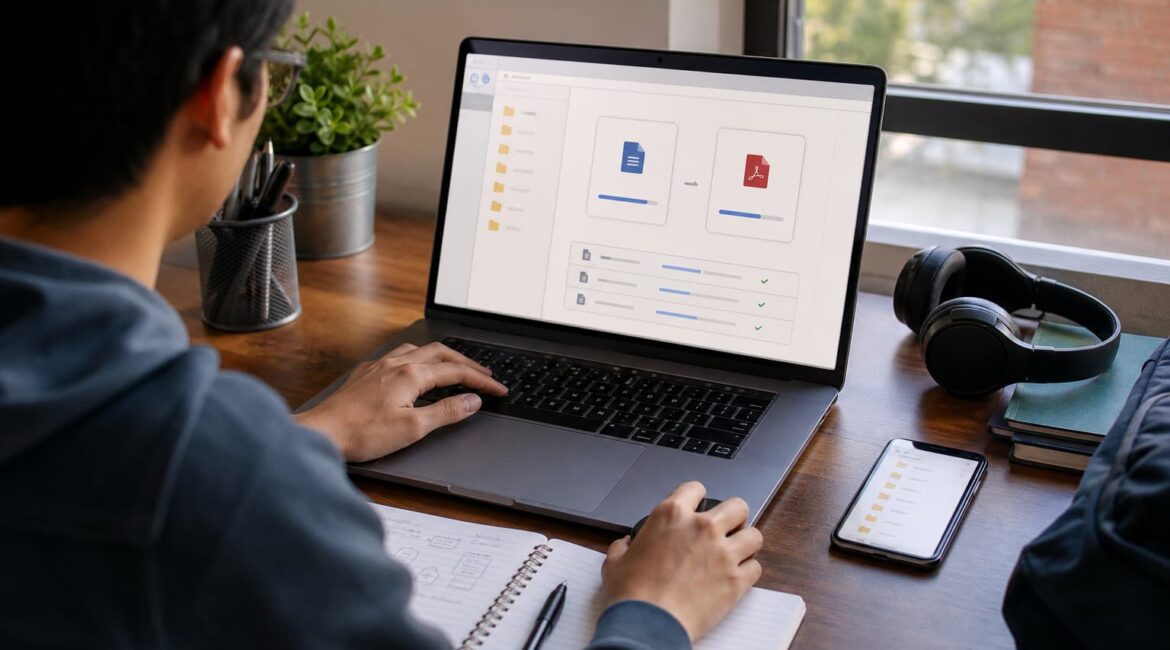

IT students work with more file formats than they expect. A web design assignment may start as a PNG mockup, become a compressed archive, and end as a PDF presentation. A QA report may include screenshots, spreadsheets, logs, and short videos. A programming class may require source files, documentation, and exported diagrams. None of this is difficult by itself, but file chaos can steal time from the actual learning.
A practical file conversion workflow helps students stay organized, submit work in the right format, and collaborate without asking everyone to install the same software. The goal is not to convert everything blindly. The goal is to know when conversion is useful, which tool fits the task, and how to protect quality along the way.
Why conversion becomes part of student work
Most IT courses combine theory with deliverables. You might submit a wireframe, upload a video demo, share a dataset, or compress a project folder. Teachers, teammates, and clients may all use different systems. That is where an online converter becomes useful: it creates a neutral bridge between tools.
For quick tasks, AnyConv can sit alongside larger services such as CloudConvert and Zamzar as a simple way to convert files online without turning the process into a separate project. CloudConvert is often chosen for broad format control and advanced settings, Zamzar is familiar to many casual users, and AnyConv is useful when a student wants a straightforward converter for common files. The best choice depends on the file type, privacy needs, and how much control the assignment requires.
A workflow that prevents format problems
Step 1: Start with the required output. Before opening any converter, read the assignment or project brief. Does the teacher want DOCX, PDF, ZIP, JPG, MP4, CSV, or another format? If the final format is clear, you can avoid unnecessary conversions that lower quality.
Step 2: Keep the original file. Always save the source version before converting. A layered design file, editable document, or original video gives you a clean fallback if the converted copy looks wrong. Naming helps here: use project-name-source and project-name-submission rather than final, final2, and final-real.
Step 3: Convert only the copy. Upload or process a duplicate, not your only version. This is especially important for files connected to code, datasets, or design systems where small changes can matter.
Step 4: Open and test the result. A successful conversion message does not guarantee a useful file. Open the converted result, check images, page breaks, tables, fonts, links, and file size. If you are submitting a website archive, unzip it once and make sure the folders still make sense.
Step 5: Store the final file with context. Put the converted file in a submission folder with a short README if the project has multiple parts. This small habit makes group work easier and reduces last-minute confusion.
Choosing the right converter
| Need | Good fit | Student tip |
| Fast common conversions | AnyConv | Use it for simple online file changes when settings are not complex |
| More advanced options | CloudConvert | Check settings before converting media or documents |
| Familiar web conversion | Zamzar | Useful for occasional conversions across popular formats |
Common student scenarios
Portfolio preparation. A UX/UI student may need to export images from a design tool, compress them, and create a PDF case study. The source design file should stay untouched, while exported images can be converted or resized for the final portfolio.
QA documentation. A tester may collect screenshots in different formats, convert a spreadsheet to PDF, or turn a short recording into a smaller video file. Consistent formats make reports easier for instructors and teammates to review.
Web development submissions. A developer may need to package HTML, CSS, JavaScript, images, and documentation into a ZIP file. If images are too large, converting them to a more suitable format can reduce upload size without changing the code.
Data and presentation work. Data science students often move between CSV, XLSX, PDF, and images of charts. In this case, accuracy matters more than appearance. After conversion, check numbers, separators, and labels carefully.
Privacy and quality checks
Not every file should be uploaded to an online service. Avoid sending private client data, personal documents, passwords, unpublished research, or confidential source material unless you are sure the service and the course rules allow it. For sensitive work, local tools may be safer. For ordinary class assets, online conversion is usually convenient, but students should still use judgment.
Quality also deserves attention. Converting a high-resolution image to a compressed format may make it easier to upload, but it can blur UI details. Turning a document into PDF can preserve layout, but only if fonts and images render correctly. For final submissions, the converted file should be treated as a deliverable, not an afterthought.
Final thought
File conversion is a small skill, but it supports almost every digital workflow. Students who learn to plan formats, keep source files, test converted results, and choose the right converter spend less time fixing preventable problems. That leaves more attention for the work that matters: building, testing, designing, and explaining projects clearly.